
Prusa XL
 Members must complete the Intro to Filament 3D Printing Class before using this tool
Note: This machine has booking limitations. See Access Policies for more details.
Asmbly has a Prusa XL 5T with Input Shaping. This printer allows you to use up to 5 different filaments in any layer of your print.
The XL has a built-in wireless protocol called PrusaLink instead of an OctoPrint server. To connect wirelessly via PrusaLink, open a web browser and visit:
http://xl-printer.asmbly.org
When prompted for credentials, use:
username: maker
password: BcdhPrsUYS7EFz5
|
Safety
Universal Safety
- Be aware of your surroundings, especially when handling large materials.
- Do not approach anyone operating equipment. Stand patiently in their field of view.
Equipment-Specific Safety
Intro to Filament 3D Printing Class is required to use this tool.
No special PPE is required to use this tool.
Booking Policies
Because 3D Prints involve a lot of time when you don't need to be present, the policies are slightly different from the general booking policies.
- Time booked for 3D printing in Skedda does not count against your weekly usage hours, but time on the XL is limited to 48 hours per week. If you want to print a large object that will take longer, book the first 48 hours and email 3dprinters@asmbly.org to request more time. If it's available, we'll try to book it for you.
- It is fine for a print to continue while Asmbly is closed.
- You may book up to two 3D printers at a time.
- Book all of the time you need. Only print during time that you have booked. Don’t start prints that will go beyond your booked time. If your print has been paused or stopped because of a problem, don’t resume or restart it if it will go beyond your booked time. If time is available after your booked time, feel free to book more time to finish your print. If another member has already booked time that your print would need to use, and you contact them and get their approval, you may finish your print. However, if you do not manage to contact them, or if they do not agree to let you continue, then do not start, resume, or restart prints that would go into their time.
- Time you book is yours. If you arrive for your booked time and a print is ongoing, you may stop that print. If a print only has a few minutes remaining, it would be nice if you let it finish, but you are not under an obligation to do so.
- Give back time that you don’t need. If you realize you’ll be late, change your booking to start when you’ll actually be ready to start. If your print ends early, end your booking early in Skedda.
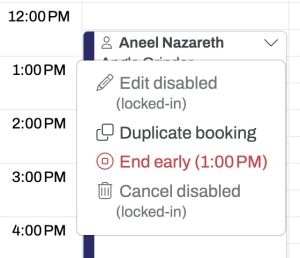
- Don’t let time go to waste. There is a two hour grace period at the beginning of a booking. If the booker is not present after two hours and the printer is still idle, another member may claim the remainder of the time on a first-come, first-served basis. Email 3dprinters@asmbly.org to let us know that this happened. There is a 30 minute grace period after the completion of a print. If the booker is not present and the printer is idle, another member may claim the remainder of the time on a first-come, first-served basis. Email 3dprinters@asmbly.org to let us know that this happened.

Etiquette
If you come in for your scheduled time and a print has finished, feel free to move it and any filament on the machine to the table to the left of the enclosure.
If you are in the 3D printing area and see a print in progress that is obviously failing, it is a good idea to stop the print so that it stops wasting filament. Try to contact the person who has that printer booked in Skedda to let them know. Discourse is a good way to do that, if you don't already know them.
You may find a cut-off piece of filament still in the nozzle when you arrive. This is because the nozzle was cold when the previous user retrieved their filament and they didn't want to wait for it to heat up again. When you heat the nozzle for your own print, just unload the stub and discard it.
Use Case

The Prusa XL is a good printer to produce small, medium, and large sized objects using up to 5 filaments. It supports many common filament types.
If you need to print in ABS, ASA, or other materials that print better enclosed, consider using the PolyPrinter 229. Warping or delamination may occur due to the higher shrinkage of these materials.
Use Skedda to reserve time on the specific printer.
Materials
Acceptable Materials
Many types of 1.75mm filament will work with these printers.
This printer have been equipped with abrasion-resistant nozzle ONLY on nozzle 1 (ObXidian nozzles). This means that filaments that include additives like glow-in-the-dark (strontium aluminate), carbon fiber, glass fiber, wood, or metal are acceptable to use with this nozzle.
Material Limits
Print volume is 360mm x 360mm x 360mm (14.1" x 14.1" x 14.1")
Consumables
You are responsible for providing your own filament. Please write your name on your filament spools. There are metallic sharpies available in the tool caddy.
There are many places to order from, including MatterHackers, Prusa, Polymaker, and Amazon. We are not currently aware of any place to buy filament locally, but if you know of one, we'd be interested!
There are some SD cards in the tool caddy, but if you find yourself printing from SD frequently, consider bringing your own. Files on the Asmbly SD cards are erased periodically to ensure there is enough space for everyone to use.
Asmbly provides a selection of Prusa steel sheets in three different textures: Textured, Satin, and Smooth. Asmbly also provides cleaners for the sheets: Isopropyl Alcohol (usually in a squeeze bottle with the printer tools) and Dish Soap (in the coffee area just outside of the multi-purpose room.
Operation
Controls
Emergency Stop
If you see or hear something going terribly wrong with the printer, you can immediately stop it by pressing the RESET button below the dial control. This is equivalent to unplugging the printer and plugging it back in. Examples of situations where you would want to do this: the nozzle is contacting the steel plate, the printer is trying to move the head beyond its rails.
If you just need to stop a print, please press the dial control and select Stop Print. The RESET button sometimes causes the printer to lose some of its settings and need to be recalibrated, so avoid using it for things you can stop normally. But if you are in doubt, do use the RESET button.
Control Panel
Each printer has a control panel that can be used to do things like preheating the machine, loading and unloading filament, pausing/stopping a print, and starting a print from an SD card.
PrusaLink
This printer is also equipped with a dedicated PrusaLink server:
Login information: The username is "maker", and the password is BcdhPrsUYS7EFz5.
PrusaLink allows you connect from the Asmbly WiFi network with a web browser or an app and start/stop a print and monitor things like the current temperature. You can't access these machines from home, you must be physically present at Asmbly.
Stopping or Pausing a print
You can stop a print from either PrusaLink or the control panel. If you stop or pause a print from PrusaLink, it will not move the nozzle clear of your print. If you hope to resume, it is probably better to do this from the control panel.
Firmware Upgrade Warning
Please contact a steward should a firmware upgrade message appear, or ignore the message if no stewards are present.
Settings and Adjustments
Filament
Make sure that your gcode is sliced for the particular kind of filament you're using. You can select the filament type on the control panel, and adjust the bed and nozzle temperatures.
Print Bed Sheet

Asmbly provides three different kinds of Prusa sheets:
There is a chart on the enclosure that lists which sheets are best for each kind of filament, or check Section 6.1 of the XL manual [2].
Ensure that the printer knows which sheet is on it. The sheets have different thicknesses, and you may not get a good first layer if the wrong sheet is selected.
Nozzles / Hotend
Nozzle 1 is equipped with the 0.4mm abrasion-resistance ObXidian nozzles.
The other nozzles are equipped with Nextruder 0.4mm nozzles.
Please do not change the nozzles.
Cleanup
Universal Cleaning Guide
- Return the equipment to neutral.
- Sweep up any dust and debris around the tool, your table top, and the floor - both in the equipment area and your work area.
- Clear the floor of any tripping hazards, like power cords.
- Empty trash cans and dust collectors that are halfway full or more into the Asmbly dumpster behind the workshop.
- Leave the shop 110% better than you found it.
Tool Specific Cleaning Guide
- Remove any scraps of filament from the enclosure
- Return any tools you used to the tool caddy
- Make sure the steel sheet you used is clear of any leftover filament
Resources
Manual
- [3]
- PrusaSlicer
- 3D Filament Temperature Tower - Fine tune your temperature settings for a particular filament
Discourse Links
External Resources
Places to find models to print:
- STLFinder
- Thingiverse
- Printables
- Yeggi
- Buy from makers on Etsy
- MyMiniFactory for DnD miniatures
Places to buy filament:
- Polymaker
- Amazon
Troubleshooting
Model not sticking to the sheet
If you are having trouble with getting your first layer to stick properly try these:
- Double check that the printer is configured for the right sheet
- Clean the cool sheet with Isopropyl Alcohol (in a squeeze bottle with the other tools)
- Wash the sheet with dish soap at the coffee area sink. Make sure the sheet is completely dry before reinstalling it.
- Contact a steward
Trouble loading filament
If you are loading filament and it doesn't want to come out of the nozzle, here are some troubleshooting steps.
Make sure you have cut the end of the filament at a 45° angle, use the diagonal cutters if not

Check if your filament is loading into the tube that leads to the nozzle
- Lift the catch that holds the idler door

- Open the idler door

- While you have the door open, look for any debris (usually ground up filament bits) on the idler gear. Use the air bulb (in the drawer of the wood table) to clean it out

- Look at whether the filament is entering the tube at the bottom of the idler gear


- If the filament is missing the tube, try grabbing the end with a pair of pliers and manually inserting it into the tube. Close the door and the catch and try loading again
- If the filament is aligned with with the tube, but nothing is coming out of the nozzle, probably some filament is stuck in the tube. Let's melt it out! Start by unloading your filament and then unscrew the end of the bowden tube.

- Grab a piece of cleaner filament

- Insert it into the extruder

- Have the printer load filament at a temperature higher than what's in the tube. You can use a very high setting like PA if you don't know what the last filament was.

- Hopefully, you should see something oozing out of the nozzle, and then eventually the translucent white of the cleaning filament. Use the "Purge More" command until the color is mostly translucent.
- Unload the cleaning filament using the console and screw the bowden tube back in. Your filament should now load.
If these steps do not fix your problem, please open a problem report
There are other techniques for clearing problems like this (like using acupuncture needles, pressing the filament through with a tool, doing a cold pull, etc.). If you're comfortable doing those, feel free to try them, but the steps above usually resolve the problems we've seen on the XL.
Nozzle has plastic stuck to it
This often happens as a result of the model not sticking to the sheet, and causes problems when you try again.
- Use
Settings > Move axis > Move Zto raise the nozzle so you can see under it - Touch some cool plastic to the still-hot plastic on the nozzle. It should stick and let you pull the mess away
- Heat the nozzle above the printing temperature for your filament, for example, try 250° for PLA, which normally prints around 215°. Wait for the nozzle to heat up and let the melted plastic drip off of the nozzle
- Use the tweezers from the tool caddy to grab larger lumps
- Use the soft-bristled brush in the tool caddy to wipe the warm nozzle
Other
If you are unsure, feel free to contact a steward or fill out a problem report
Maintenance
The information below is primarily for stewards.
Regular Maintenance
The lead screws should be cleaned and lubricated regularly. This video provides a good walkthrough: How To Service Your Prusa i3 MK3
Moving the printers
The Prusa XL printer is located on top of a sliding platform. Take care when moving, as the printer is heavy (55 lbs).
Rebooting Procedure
Then toggle the power supply unit switch off and on.
Z Problems
In general, the Prusa XL does not require Z calibration. If the printer is printing too far away or too close to the bed for the first layer, check the following:
- Make sure the printer knows which sheet is on the bed. Different sheets have different calibration.
- If problems persist, please file a problem report or contact a steward.